Portico SIS Release Notes - September 2026
Greater Financial Visibility. More Control. Less Guesswork.
This month’s Portico SIS release delivers a significant expansion of financial operations capabilities, giving institutions greater visibility into earned revenue, accounts receivable, and deferred revenue — along with new tools to understand the financial activity behind those numbers.
Finance teams can now analyze earned revenue and A/R at the enrollment and student level, more easily identify accounts that may require attention, recognize full-program charges based on hours actually attended, and trace recognized revenue back to the individual ledger transactions where it originated.
Beyond financial operations, this release continues our focus on giving institutions greater control over the policies and workflows that make their programs unique, with new Gradebook Assignment Retake Policies, expanded FA Payment Period billing, improved SAP reporting, and more flexible handling of transferred hours.
Together, these enhancements are designed to make complex institutional processes easier to manage — with better visibility, greater automation, and fewer manual workarounds.
TABLE OF CONTENTS
- Expanded Revenue Recognition & Financial Reporting
- New Revenue Recognition Option: Program + Hours Attended
- Clearer Revenue Detail on the Student Ledger
- FA Payment Period Billing for Nonstandard-Term Programs
- Gradebook Assignment Retake Policies — Limited Release
- More Flexible Transfer Hour Handling
- SAP Reporting Improvements
- Coming Soon

Expanded Revenue Recognition & Financial Reporting
See the Full Financial Picture — From Earned Revenue to A/R
What It Is
Finance teams now have a more complete view of earned revenue, accounts receivable, deferred revenue, and payment activity across student enrollments.
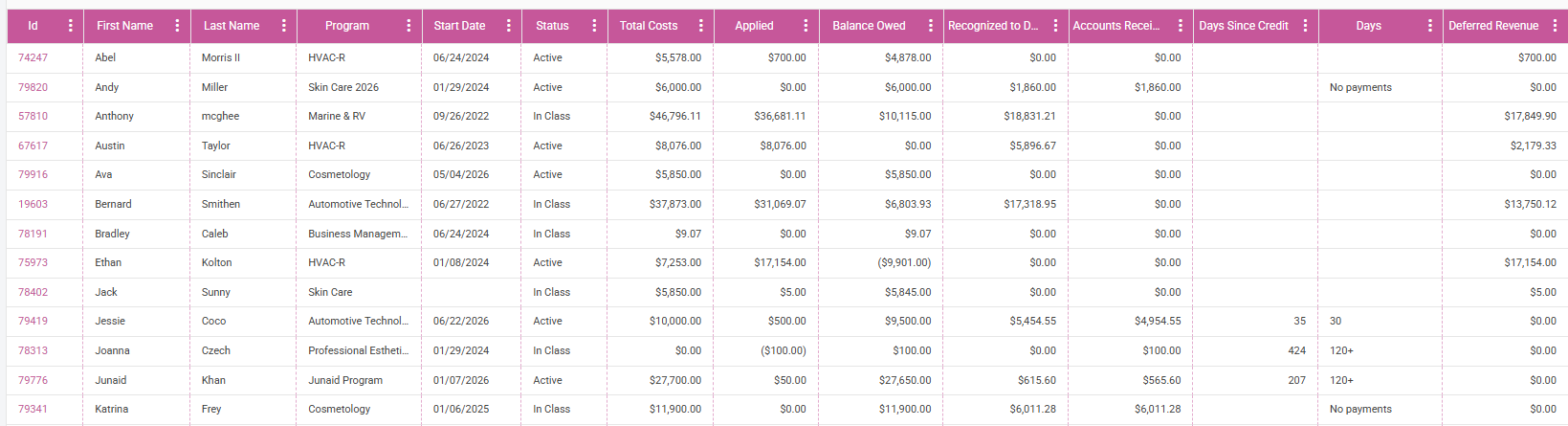
The new Earned Revenue, A/R & Deferred Revenue Report provides enrollment-level visibility into:
- Total charges
- Amounts applied
- Outstanding balances
- Revenue recognized to date
- Accounts receivable
- Deferred revenue
- Days since the student’s most recent payment
Users can filter and group the report by fields such as campus, enrollment status, and program, with financial subtotals available for each grouping. A student-level rollup also makes it possible to evaluate financial activity across multiple enrollments for the same student.
A new Days Since Credit field makes it easier to identify accounts that may require attention by showing payment recency in familiar 0, 30, 60, 90, and 120+ day aging ranges. Students who have never made a payment are clearly identified as No Payments, helping Finance teams quickly distinguish these accounts rather than having them appear alongside recently paying students.
Student IDs within the report link directly to the corresponding student ledger, allowing users to move from identifying a potential A/R concern to reviewing the transactions behind it in one click. The report can also be exported to Excel for additional analysis.
Why It Matters
Finance teams can now move beyond simply seeing how much is owed to more easily understanding which accounts may need attention first.
By bringing earned revenue, deferred revenue, outstanding balances, and payment recency together in one report, institutions can quickly identify higher-risk receivables — including students who have never made a payment or whose last payment is significantly aged — and then drill directly into the student’s ledger for follow-up.
The result is better financial visibility, faster A/R prioritization, and less manual research to determine where action may be needed.
Who It Impacts
Finance, Business Office, Accounting, and institutional leadership.
Action Required
The new report is being introduced through a controlled rollout. Contact Support for information about enabling it for your institution.

New Revenue Recognition Option: Program + Hours Attended
What It Is
Clock-hour institutions that bill the full program upfront can now recognize that revenue as the student progresses through their actual attended hours.
Portico SIS revenue recognition combines two components: the revenue earning period, which aligns recognition with how charges are billed, and the revenue method, which determines how progress toward earning those charges is measured.
The new Program + Hours Attended option expands those combinations for institutions that charge for the full program rather than billing by payment period. The full program charge is used as the revenue earning period, while the student’s actual attended hours determine how much of that revenue is earned over time.
Under this method:
- A consistent hourly earning rate is calculated across the full program.
- Revenue is recognized based on the student’s actual attended hours.
- Transfer hours do not generate earned revenue.
- Revenue recognition pauses during an LOA and resumes as the student returns and attends.
- By completion, recognized revenue aligns with the full program amount charged.
Existing revenue recognition configurations remain unchanged unless the new option is selected.
Why It Matters
Not every clock-hour institution bills students by payment period. Schools that charge the full program upfront need their revenue recognition period to align with that billing structure while still recognizing revenue according to the student’s actual academic progress.
Program + Hours Attended gives those institutions a revenue recognition model that matches both sides of the equation: how they bill and how they earn.
Who It Impacts
Finance, Accounting, and Business Office teams at clock-hour institutions that bill the full program upfront.
Action Required
Configuration is required to use the Program + Hours Attended revenue recognition option. Existing revenue recognition configurations will not change automatically.

Clearer Revenue Detail on the Student Ledger
What It Is
The Revenue tab on the student ledger now provides a clearer way to understand how individual charges are recognized over time.
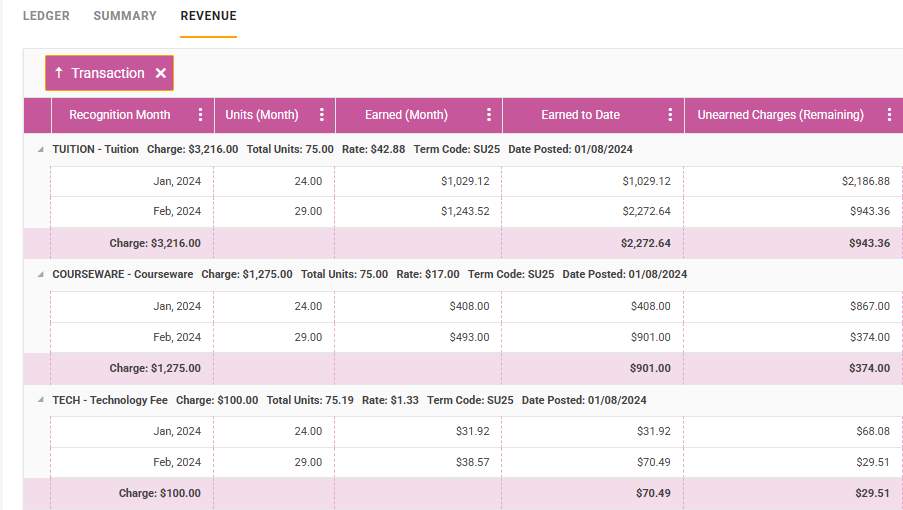
Revenue activity can now be grouped by Transaction, bringing each original ledger charge together with its related revenue recognition activity. Users can see important transaction details — including the original charge, rate, total units, term, and date posted — followed by the month-by-month recognition associated with that charge.
For each recognition period, the Revenue tab displays:
- Recognition Month
- Units for the Month
- Earned Revenue for the Month
- Earned Revenue to Date
- Unearned Charges Remaining
This structure supports the institution’s configured revenue recognition methodology, whether earning is based on calendar days, scheduled hours, or attended hours.
Why It Matters
Finance teams can now follow the full revenue lifecycle of an individual ledger charge in one place — from the original amount charged through what has been earned and what remains unearned.
Grouping recognition activity by the underlying transaction makes it easier to understand which charge generated the revenue, how that charge is being recognized over time, and how much remains to be earned — without piecing together individual revenue records.
Who It Impacts
Finance, Accounting, and Business Office teams.
Action Required
None.

FA Payment Period Billing for Nonstandard-Term Programs
What It Is
Portico SIS now provides additional billing flexibility for clock-to-credit and FA-credit nonstandard-term programs.
A new FA Payment Period billing type can be paired with Custom Charge billing to generate tuition charges according to financial aid payment periods and FA units.
When configuring the billing cycle, eligible programs are limited to those configured with FA units, helping ensure the billing method is applied to the appropriate program types.
Generated charges flow through the existing Tuition Batch process and student ledger and are included in the A/R Transaction Detail Report.
Why It Matters
Institutions with nonstandard-term programs can more closely align institutional billing with the financial aid structure of the program instead of relying on billing methods designed around clock-hour payment periods.
Who It Impacts
Finance, Financial Aid, and Business Office teams supporting clock-to-credit or FA-credit nonstandard-term programs.
Action Required
Billing Cycle configuration is required to use the new FA Payment Period billing type.

Gradebook Assignment Retake Policies — Limited Release
What It Is
Academic teams can now define how multiple attempts on graded assignments are calculated.
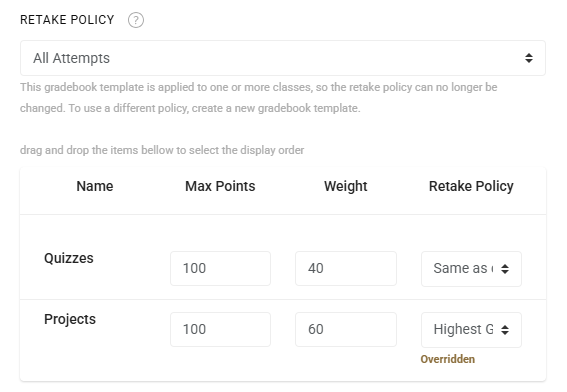
Retake policies can be configured at the Gradebook Template level using:
- All Attempts
- Highest Grade
- First Attempt
- Latest Attempt
Schools can also override the template policy for individual graded items, allowing different assignment types within the same course to follow different retake rules.
The configured policy determines which eligible attempts contribute to the student’s grade, while existing manual exclusion and extra-credit controls remain available when exceptions are needed.
Retake policies also extend to Academic Engagement scores, allowing attempts recorded through scheduled class activity and Academic Engagement to be evaluated together under the configured policy.
Why It Matters
Managing assignment retakes shouldn’t require academic teams to manually determine which attempt should count every time a student retakes an assignment.
Retake policies give institutions a more consistent and automated way to apply their grading policies, while preserving the flexibility to handle exceptions at the individual graded-item level.
Who It Impacts
Registrars, Academic Administrators, Faculty, and other teams responsible for Gradebook configuration and academic records.
Availability
Gradebook Assignment Retake Policies are being introduced through a limited release and require activation.
The initial release is available to institutions not currently using the Voltron connector. Support for institutions using this integration is planned for a future update.
Contact Support if you’re interested in enabling Gradebook Assignment Retake Policies for your institution.

More Flexible Transfer Hour Handling
What It Is
Clock-hour institutions now have greater control over where transferred hours are applied within a student’s schedule.
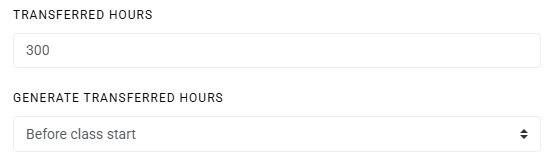
When entering Transferred Hours on a transcript, users can select the placement option that best reflects how the student’s previously completed hours should affect the remaining schedule:
- End of Schedule — Applies transferred hours beginning at the end of the student’s existing schedule. This maintains the existing transfer-hour behavior and is appropriate when transferred hours should reduce the student’s remaining scheduled time from the end of the scheduled class.
- Beginning of Schedule — Applies transferred hours beginning with the student’s earliest scheduled dates. Use this option when the transferred coursework represents hours the student has already satisfied at the beginning of the applicable class.
- Before Class Start — Places transferred hours before the class’s scheduled start date. This option is intended for scenarios where the class is scheduled for fewer hours than the course requires and transferred hours need to account for a portion of the remaining required hours without replacing the student’s scheduled class time.
- After Class End — Places transferred hours after the class’s scheduled end date. Like Before Class Start, this option is intended for classes scheduled for fewer hours than the course requires, allowing transferred hours to account for the remaining required hours outside the existing class schedule.
The SIS also protects attendance that has already occurred. When applying transferred hours, actual recorded attendance is preserved rather than overwritten.
Transferred hours can now be applied as partial-day credit, allowing the system to award the exact amount entered rather than requiring the transferred hours to align with a student’s full scheduled day.
For institutions using Extended Schedule, transferred hours and extended scheduled time can also coexist on the same dates. Extended Schedule can begin following the student’s last actual attendance date rather than waiting for dates containing transferred hours to pass.
Why It Matters
Transferred hours don’t always fit neatly into a student’s existing class schedule. Giving academic teams control over where those hours are applied makes it easier to accurately represent previously completed coursework while preserving the student’s actual attendance and remaining instructional requirements.
The additional precision also reduces manual schedule adjustments and helps ensure the student’s transferred hours match the amount actually awarded.
Who It Impacts
Registrars, Academic Operations, and teams responsible for managing transfer credit and clock-hour student schedules.
Action Required
No configuration is required.
When using Before Class Start or After Class End, these options should be reserved for classes scheduled for fewer hours than the course requires. Applying these options to a class that is already scheduled for the course’s full required hours may create an additional scheduled day.

SAP Reporting Improvements
What It Is
The SAP Report has been enhanced to provide greater consistency with the student’s academic record and a more complete view of SAP evaluation history for clock-hour programs.
SAP status, completion percentage, GPA or GA, and evaluation date now align directly with the information displayed in the student’s Academic SAP Log.
The report also displays each SAP evaluation occurring within the selected reporting period, rather than limiting the student to only the most recent evaluation. This means that when a student has multiple SAP checkpoints during the selected period, each evaluation appears as its own record.
Date filtering has also been simplified into a single reporting period, with future dates prevented.
Why It Matters
Compliance teams can more confidently use the SAP Report knowing that the information aligns with the student’s underlying SAP record.
Displaying each evaluation also provides a clearer historical picture when a student has multiple SAP checkpoints within the same reporting period.
Who It Impacts
Financial Aid, Compliance, Registrars, and Academic Administrators.
Action Required
None.

A preview of what's on the way. Dates and details may shift as work progresses.
Coming Soon
Automated Repeat Course Policy
Repeat coursework is about to get much easier to manage.
What It Is
Portico SIS will automatically identify and apply repeated coursework according to each program’s configured policy:
- All Attempts
- Highest Grade
- First Attempt
- Latest Attempt
The selected policy will automatically determine how repeat coursework contributes to GPA and GA calculations, with the resulting academic calculations carried consistently throughout the SIS, including academic records, portals, transcripts, reports, and SAP-related workflows.
This replaces a highly manual process in which staff may need to identify repeated coursework and manage grades individually at the student record.
We’re putting the finishing touches on additional repeat-course visibility within the student academic record and printed transcript before making the feature available.
Why It Matters
Automating repeat-course policy will reduce manual maintenance, improve consistency across student records, and help ensure GPA and GA calculations reflect the institution’s academic policy.
Less manual maintenance. More consistent academic records.

We'd love to hear from you and your colleagues about product feedback or what you'd like to see next.
Sign up to participate in future product feedback sessions or early design reviews.
Was this article helpful?
That’s Great!
Thank you for your feedback
Sorry! We couldn't be helpful
Thank you for your feedback
Feedback sent
We appreciate your effort and will try to fix the article